

Our Strategy to 2035
Place to belong
Our Strategy to 2035 will help us keep the focus on what we do best - giving young people a place to belong and giving them the skills to thrive.
Find out more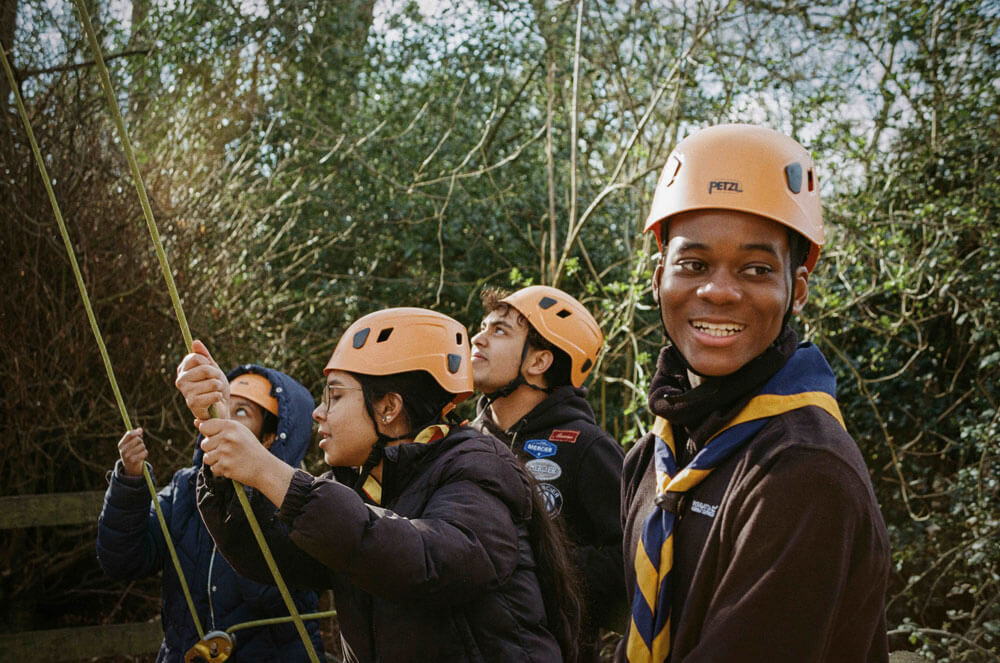
The navigator’s role is to find the trees and mark each collection task as completed or failed. You will be using a delivery van routing app, OnFleet, on your mobile phone. The app will show a list of all the trees assigned to your van, which you can also view as pins on a zoomable map. OnFleet links to your chosen navigation app (Google maps, Waze, etc.) to help you find the locations. Your main tasks are to decide where to go next, direct the driver to that location, and ensure that we find and collect all the trees that have been ordered, but no others.
You will receive an invitation by text message to download the OnFleet app and sign on as a “driver” with 1st Weston Green Scouts. (Note: OnFleet is made for delivery van drivers who work alone, so it thinks of you as a driver.)
When you download the app and go online for the first time (toggle switch at the top) you will be asked to make some changes to settings, including allowing OnFleet to access your location at all times. Please do this; you can delete the app as soon as the collection weekend is finished. Please also click on the menu icon (top left) and use Settings / Navigation to link the app to your choice of navigation app (Google maps works well if you have no preference).
When you head out for your collection shift, you will see a list of tasks that have been assigned to you. In the list view, you can see the street addresses and the names of customers. If you switch to map view (map icon at top right) you can see the tasks as a series of pins on a map. You can zoom in or out on the map. If you click on a task (from either view) you can see more details. If the customer has provided a W3W address, it will be there as a clickable URL. The customer’s phone number is shown, and you can click to call them if needed. Any additional details about the location that the customer (or our dispatcher team) provided will be shown. If there are two trees to collect from the same address, it will say TWO TREES.
Once you “start” a task, it must be completed before you move to the next task. For this reason, we recommend that you don’t start a task until you are certain that it is the next address you will visit. You can navigate to a task without starting it by clicking the small blue button at top right, and selecting “Navigate”. On arrival, start the task and then mark it as completed, with either success or failure. If you think it would be helpful, for failed tasks, you can take a photo, which our “tree towers” team can see.
You do NOT have to tackle tasks in the order they appear on the list. Some lists will have been ordered into a sensible route. Others are simply all the trees in an area, presented street by street, with house numbers in order.
Note: if we have a W3W address for a tree, the pin on the map will be in that 3m square. If not, the pin will be at the location of the street address, according to Google Maps. Google Maps is usually very accurate (although the pin will often be on the house, not its front drive). Trust the pins and use them to find the trees, but bear in mind that occasionally they could be wrong.
Our Strategy to 2035
Our Strategy to 2035 will help us keep the focus on what we do best - giving young people a place to belong and giving them the skills to thrive.
Find out more